Generators & packs
Generators live on the GEN page. Which ones you can use depends on your packs. The CAM core (import, nesting, toolpaths, the machine pages) is in every tier; packs add the parametric generators.
How packs map to generators
| Pack | Tab(s) on GEN | What it makes |
|---|---|---|
| (none — every tier) | SHAPES | Primitive shapes + SVG / DXF import → cut profiles. |
| BUILD | DOME, VAULT, BUILDING | Architectural / formwork shapes. |
| AERO | NACA | 4-axis airfoils and wings. |
| THERMAL | PIPE, THERMAL | Insulation jackets and panels. |
| DECOR | CORNICE, GRID, TEXT | Decorative mouldings, freehand custom contours, foam lettering & signs. |
- LITE — SHAPES + imports only, no parametric generators.
- PRO — pick 1–4 packs (BUILD / AERO / THERMAL / DECOR).
- STUDIO — all four packs included.
During the trial, every pack is previewed (virtual driver only). See Licensing for what each tier costs and includes.
SHAPES — every tier
The base generator, available on every tier including LITE:
- SHAPES — primitive profiles: rectangles, rounded rectangles, trapezoids, triangles, circles, ellipses, regular polygons and a quick NACA-4.
- SVG / DXF import — bring in a drawing; FoamSync turns the closed contours into cut profiles you nest and cut like any other part.
AERO pack — NACA
Four-axis aerodynamic profiles:
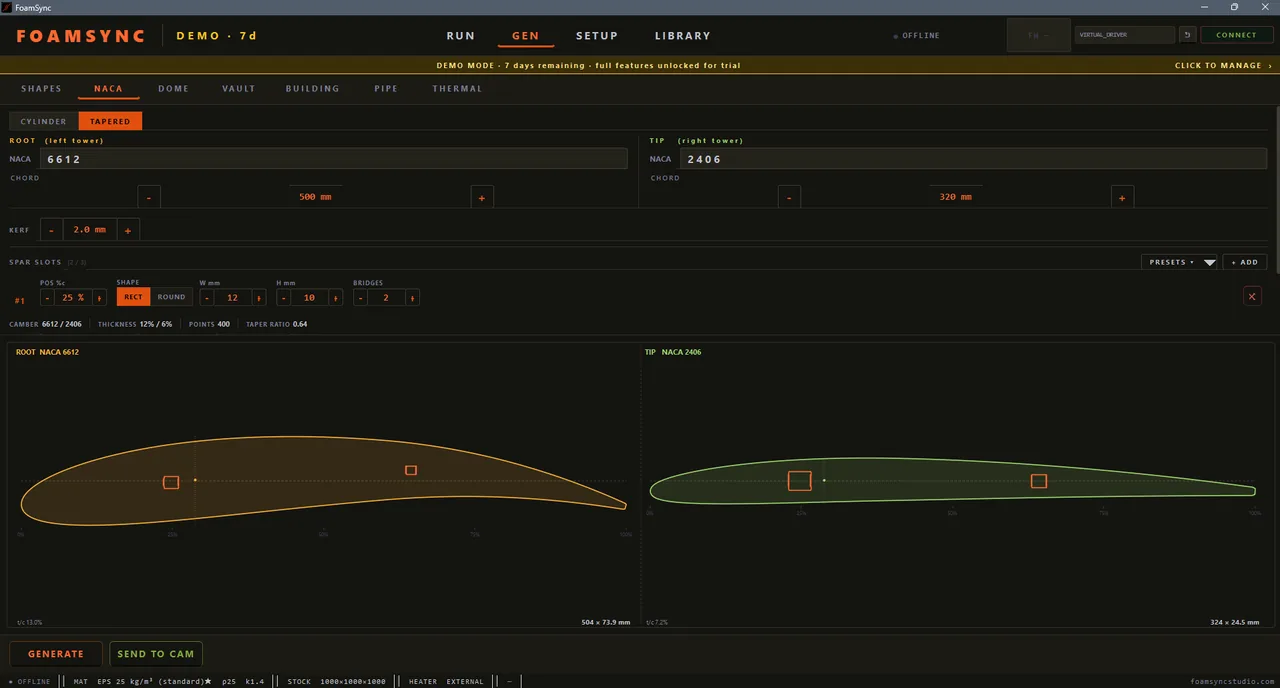
- NACA-4 airfoil generator — set the 4-digit code, chord and thickness.
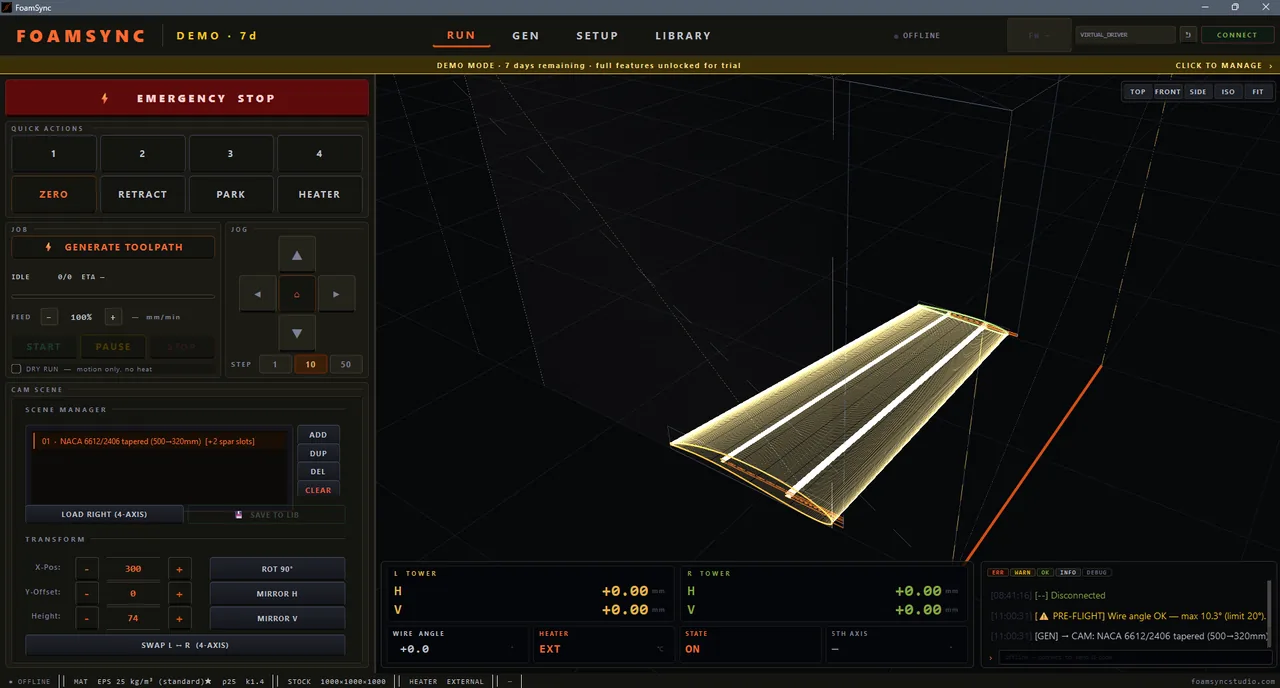
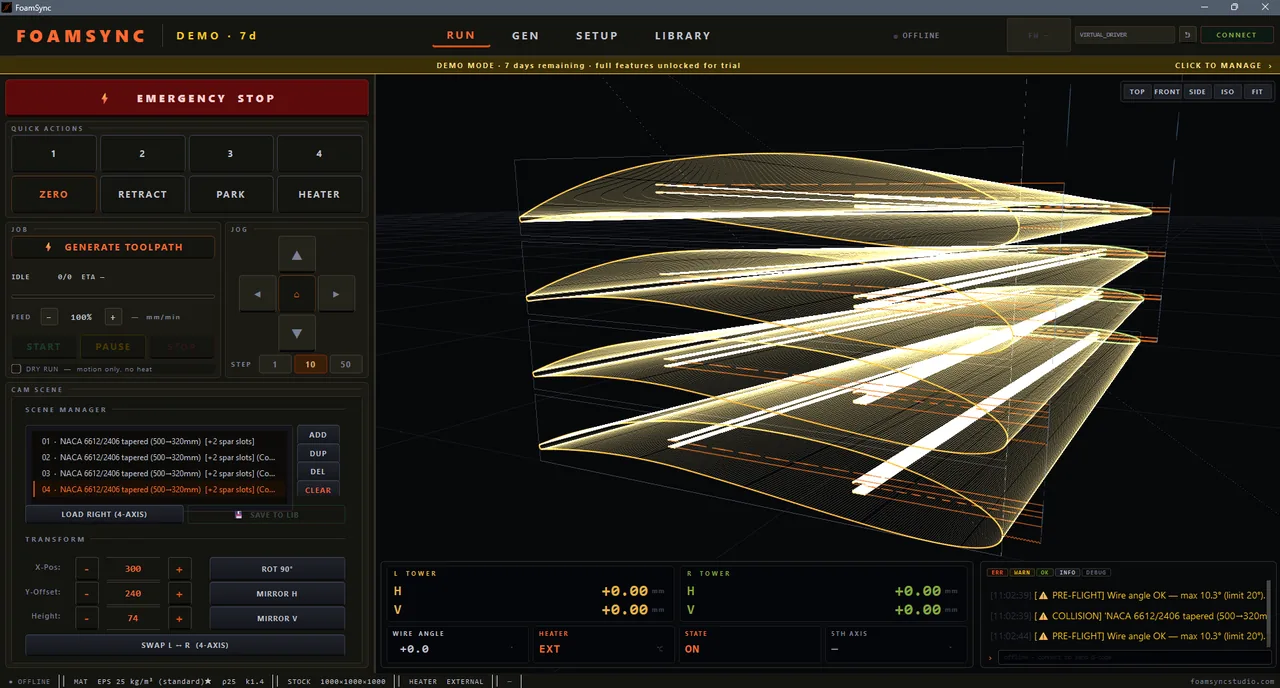
- Cylinder or tapered wings — a tapered wing uses a different root and tip profile (e.g. root NACA 8612, tip NACA 4408) and FoamSync sweeps the wire between them.
- Spar-slot cut-outs with bridge support — pockets for wing spars, with uncut bridges so the plug doesn’t drop mid-cut.
- 4-axis tilted cuts — independent X/Y (left tower) vs U/V (right tower) motion.
- Up to 3 spar slots per wing (main / rear / aux), each rectangular or round.
BUILD pack — DOME / VAULT / BUILDING
Architectural and formwork shapes:
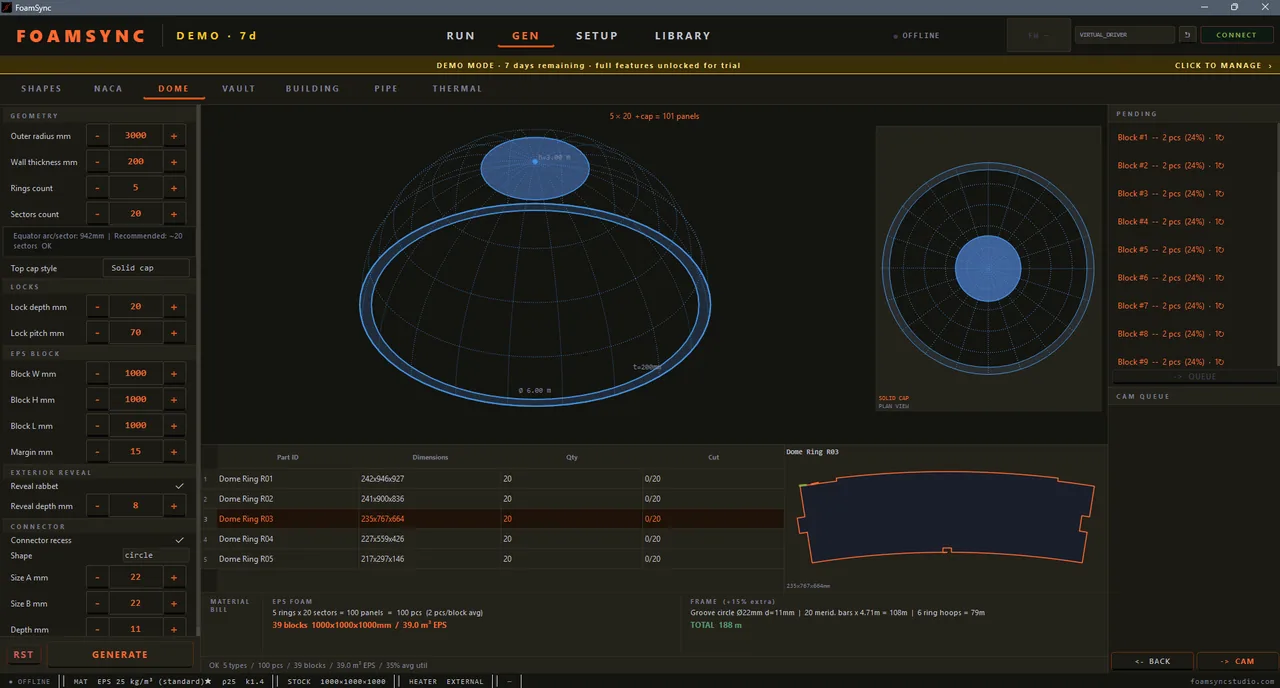
- DOME — radial dome split into rings × sectors, with a solid / oculus / no top-cap, plus lock recesses and an exterior reveal rabbet. The preview shows the dome in 3D and a plan view, with a full material bill (panels, blocks, metres of edging).
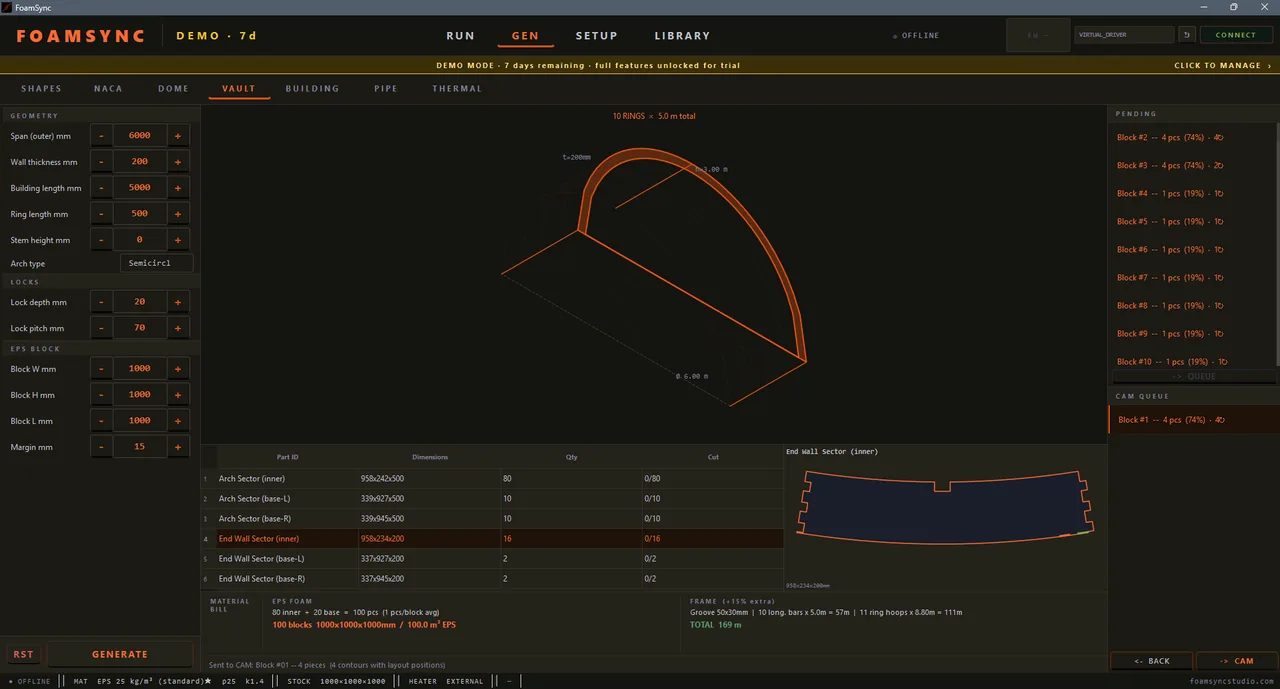
- VAULT — barrel vault with custom span, height and arch profile. The simplest 4-axis shape and a good first cut.
- BUILDING — building-block walls with rounded-corner openings.
THERMAL pack — PIPE / THERMAL
Insulation and thermal-management cut paths:
- PIPE — pipe-shell unfolder for cylindrical insulation jackets, with a pair-interlock nester so two half-shells pack into the footprint of one full circle.
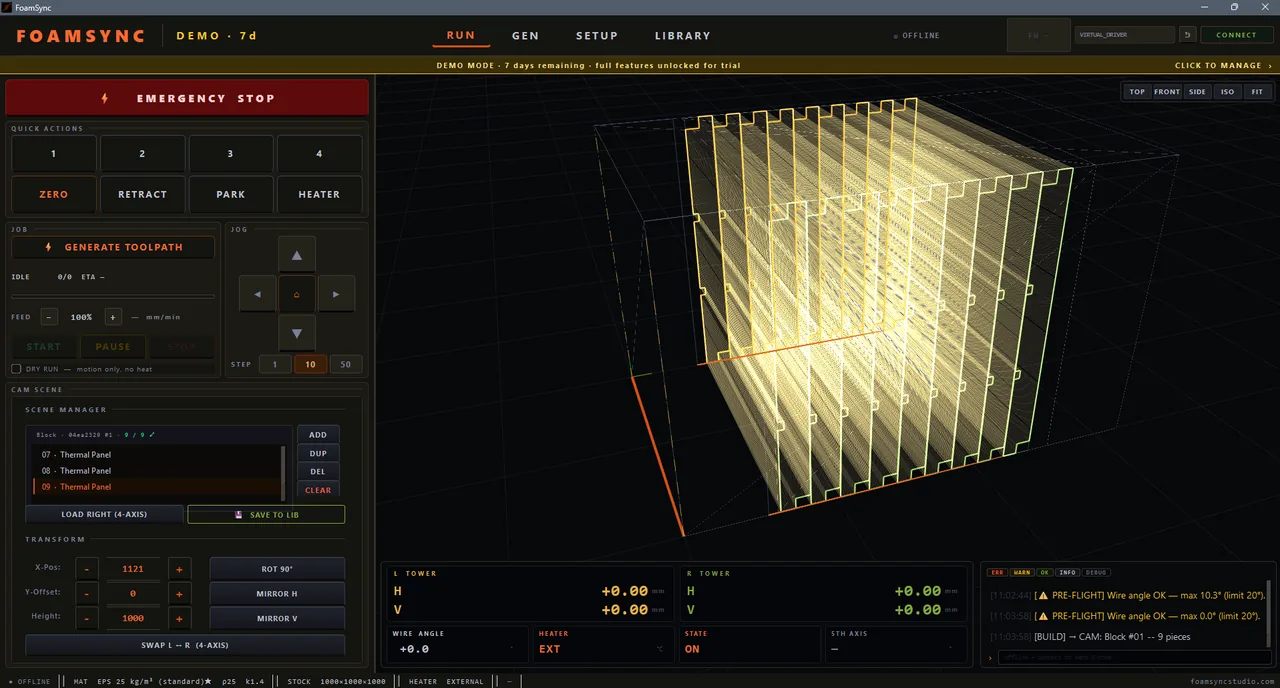
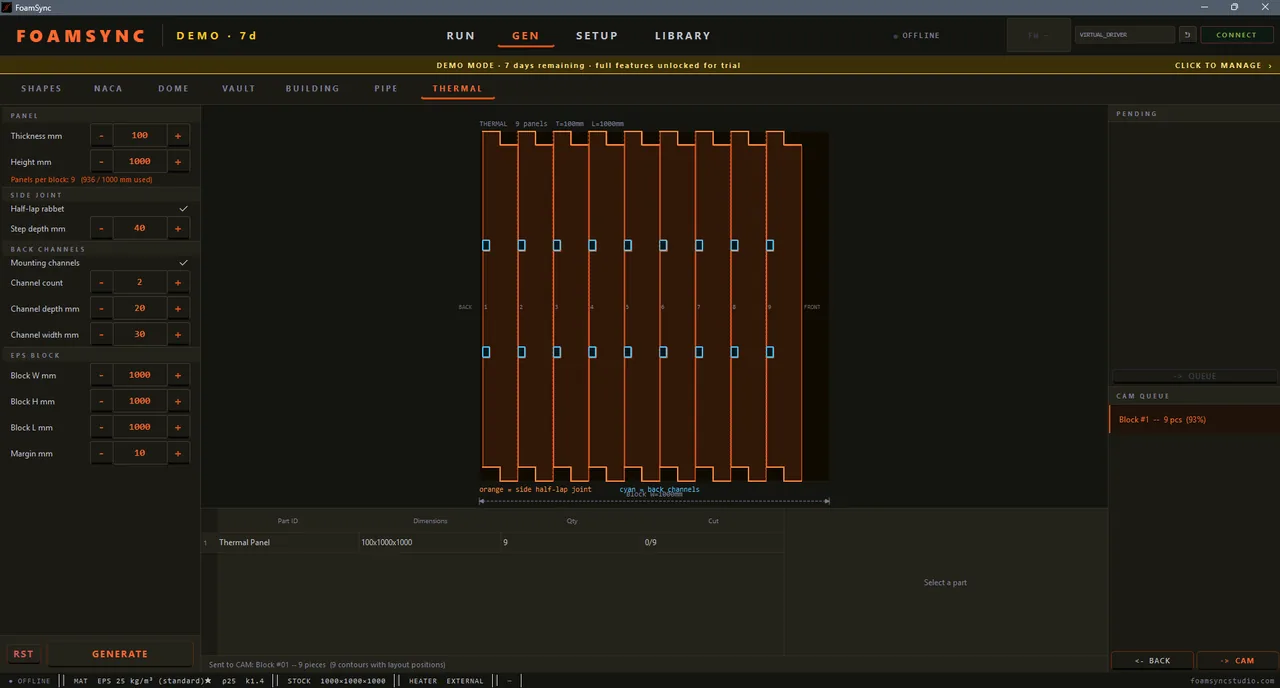
- THERMAL — thermal-panel generator with half-lap rabbet side joints and optional mounting channels on the back, auto-nested across the foam block. The preview shows the panel count per block and the joint/channel layout.
DECOR pack — CORNICE / GRID / TEXT
Decorative and freeform cut paths — signage, custom contours and architectural trim:
- CORNICE — decorative moulding-profile generator built from a catalogue of real profiles (cove, ovolo, ogee, crown and more), scaled to your height / width for trim and architectural detailing.
- GRID SKETCH — draw any custom contour on a snap grid: curved edges, inner holes, mirror symmetry, and a trace-over-image backdrop so you can sketch on top of a reference photo or logo. Save drawings to a private shape library and reload them later instead of redrawing.
- TEXT — foam letters and signs from any installed font: counters (the holes in A, O, e) are cut as inner pockets, and split letters come out as separate parts.
The generator workflow
- Pick a tab on GEN and set parameters. The preview (2D profile and/or 3D) updates as you type; each field has a tooltip.
- Press GENERATE.
- Send the result onward:
- SEND TO CAM (or → CAM) drops the parts into the CAM scene.
- When the CAM scene already holds parts, FoamSync asks REPLACE / ADD / CANCEL so you can either start fresh or consolidate the new parts onto the same block.
- Save reusable setups to the LIBRARY for later recall.
What’s next
Take your parts into CAM & nesting, then run the cut.